Getting Started with Hexana for VS Code
This page covers installation, first launch, and the layout you will see when you open a .wasm file.
How do I install Hexana for VS Code?
From the Visual Studio Marketplace
- Open VS Code.
- Open the Extensions view (
Cmd/Ctrl+Shift+X). - Search for
Hexana. - Click Install on the entry by JetBrains (look for the verified-publisher badge).
The extension activates on onStartupFinished, so it is ready as soon as you launch VS Code.
From Open VSX (Cursor, VSCodium, Code OSS)
- Open the Extensions view in your editor.
- Confirm the Open VSX marketplace is configured (default in Cursor and VSCodium).
- Search
Hexanaand install the entry byJetBrains.
From a .vsix file (manual)
- Download the
hexana-wasm-*.vsixartefact from the GitHub release. - In VS Code, run Extensions: Install from VSIX… from the command palette (
Cmd/Ctrl+Shift+P). - Pick the downloaded file.
After install, Hexana registers itself as the default editor for .wasm files (workbench.editorAssociations is set automatically — you can override this in your settings.json if you prefer a different default).
How do I open a WebAssembly file?
Any of the following will open the file in Hexana's editor:
- Drag a
.wasmfile into the VS Code window. - Use File → Open File… and pick a
.wasm. - Click a
.wasmin the Explorer sidebar — VS Code uses Hexana as the default editor. - From the command palette, File: Open File… then pick a
.wasm.
When Hexana opens a .wasm, the extension host reads the binary, detects whether it is a Core Wasm module, a Component Model component, or a generic Wasm file, and posts the raw bytes into a webview. The webview parses the binary in-place (no server round-trip) and renders the hex view plus the analysis panel.
What do I see when I open a file?
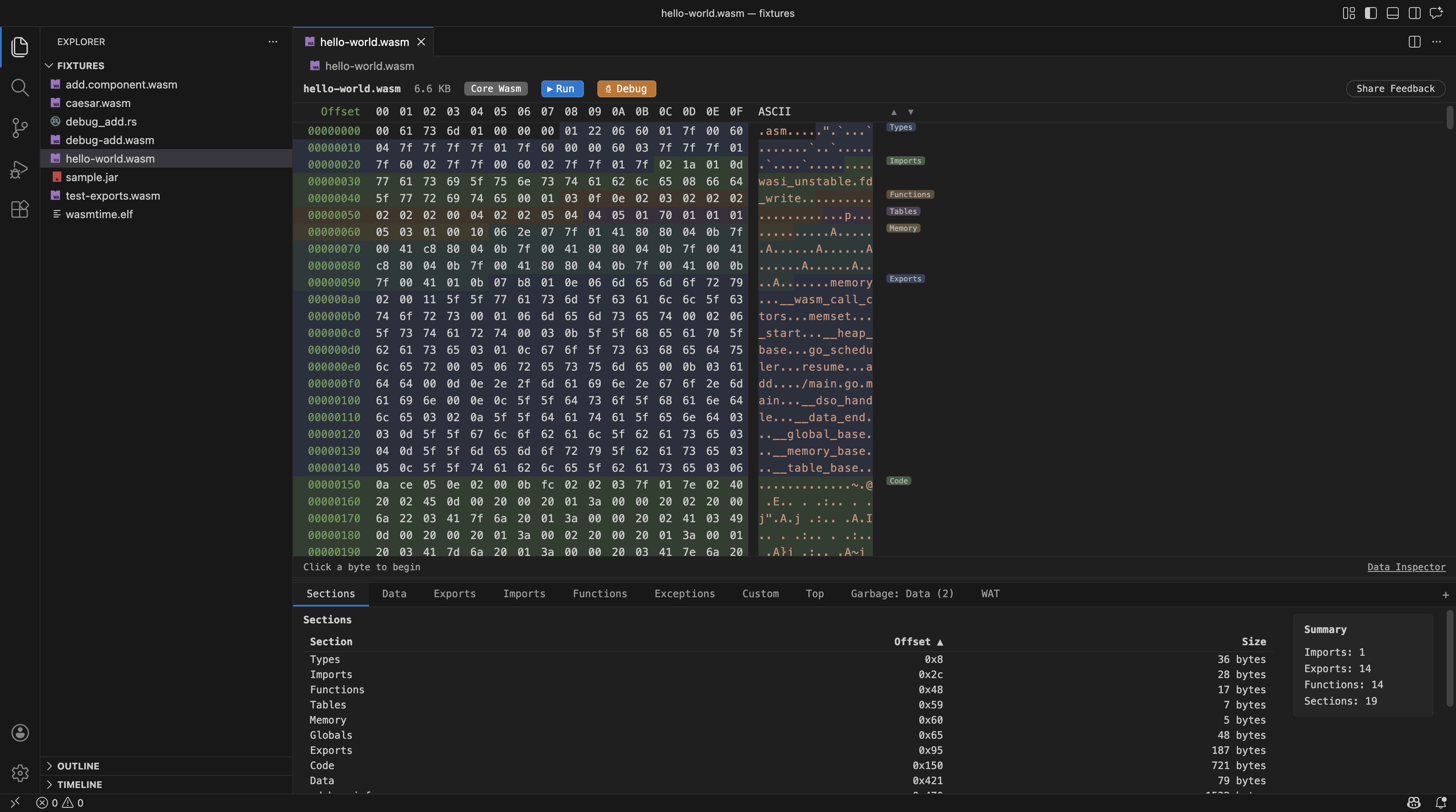
Hexana replaces the default editor with a single panel split into three regions:
┌──────────────────────────────────────────────────────────────┐
│  Editor Toolbar                                              │
│  · file path · binary kind badge · file size · Run · Debug    │
├─────────────────────────────────┬────────────────────────────┤
│  Hex Viewer                     │   Analysis Tabs            │
│  · virtual-scrolling hex dump   │   · Summary · Exports …    │
│  · click / shift-click / drag   │   · Imports · Functions    │
│  · keyboard nav                 │   · Data · Custom · Top    │
│  · text search                  │   · Monos · Garbage        │
│                                 │   · Modules · WAT          │
├─────────────────────────────────┴────────────────────────────┤
│  Selection Status Bar — current byte range / decoded values  │
└──────────────────────────────────────────────────────────────┘
The vertical divider between the hex viewer and the analysis panel is resizable — drag it to suit your screen.
Editor toolbar
- File path — full workspace-relative path.
- Binary kind badge —
core,component, orwasm(generic). - File size — in bytes plus a human-readable form (hover for a per-section breakdown; click to open the Top tab).
- Run button — present when at least one runtime (Wasmtime / WAMR / GraalVM) is available; clicking it opens the run dialog with a runtime picker (see
run-support.md). - Debug button — present when a debug-capable runtime is available; opens the same dialog but launches under a debugger (experimental). Wasmtime and WAMR debug under
lldb(LLVM 22.1+ required); Node.js and Chrome debug over the Chrome DevTools Protocol since 0.4.0. GraalVM is run-only.
Hex viewer
- Virtual scrolling — even multi-MB binaries scroll smoothly.
- Selection: click a byte,
Shift+Clickto extend, drag to range-select. - Keyboard: arrow keys move the caret;
Shift+Arrowextends selection. - Search (
Cmd/Ctrl+F): text search across the hex dump.
Analysis tabs
Up to 12 tabs, surfaced depending on binary type. See analysis-tabs.md for the per-tab reference.
Selection status bar
When you select bytes in the hex viewer, the status bar shows the current byte range and decoded interpretations.
How do I run a .wasm file?
If you have Wasmtime, WAMR, or GraalVM installed, click Run in the editor toolbar.
- Pick the runtime (Wasmtime / WAMR / GraalVM).
- Pick an export (for core modules) — or let Hexana resolve the entry point (for components).
- Provide program arguments in the dialog.
- The extension opens a terminal and invokes the runtime with the right flags.
If Wasmtime is not on PATH, set the path in Settings → Hexana → Wasmtime Path (hexana.wasmtimePath). WAMR and GraalVM are picked up from PATH and common install locations.
To debug instead of just run, click Debug — supported on Wasmtime and WAMR via lldb (LLVM 22.1+ required), and on Node.js and Chrome via the Chrome DevTools Protocol (0.4.0). GraalVM is run-only. See run-support.md for the full reference, including Component Model composition with wasm-tools or wac.
What about WAT files?
Hexana registers the wat language association for .wat files — VS Code gives them a language identifier so other extensions (WebAssembly syntax-highlighting bundles, e.g.) can target them. Hexana itself does not open .wat in a custom editor; that surface is JetBrains-IDE-only today.
The WAT tab inside the .wasm editor is available — Hexana renders the WAT representation of the loaded binary in a native VS Code editor tab on demand. See analysis-tabs.md#wat.
Next steps
- Browse the
features.mdcatalogue. - For Component Model binaries, read
component-model.md— dependency resolution and nested-module navigation are the main capabilities you'll want. - If something doesn't work, check
troubleshooting.md.