Getting Started
This guide walks you through installing TeamCity CLI, authenticating with a TeamCity server, and running your first commands.
Install TeamCity CLI
Prerequisites
TeamCity CLI requires a running TeamCity server (version 2020.1 or later) to connect to. Some features may require newer TeamCity versions (for example, 2024.04 or later). No additional runtime dependencies are needed — the CLI is distributed as a standalone binary.
Installation
Homebrew (recommended):
To update to the latest version:
Install script:
The script detects your operating system and architecture automatically and installs the teamcity binary to a directory on your PATH.
Install script (all distros):
The script detects your operating system and architecture automatically and installs the teamcity binary to a directory on your PATH.
Packages by distribution:
Winget (recommended):
PowerShell (install script):
CMD (install script):
Chocolatey:
Scoop:
Build from source (advanced)
Go install:
Clone and build:
Verify the installation
After installing, verify that the CLI is available:
Authenticate with your server
Run the login command:
teamcity auth loginFollow the prompts to enter the server URL and create an access token in your browser.
Verify the login:
teamcity auth status
Tokens are stored in your system keyring (macOS Keychain, GNOME Keyring, or Windows Credential Manager) when available.
Guest access
If the server has guest access enabled, you can log in without a token:
Guest access provides read-only access to the server.

Understand the terminology
TeamCity CLI uses shorter names for TeamCity concepts. Knowing these mappings will help you navigate the commands.
- Run
A single build execution. Equivalent to build in the TeamCity web interface. Run IDs are numeric.
teamcity run list- Job
A build configuration — the set of instructions that define how to run a build. Job IDs look like
MyProject_Build.teamcity job list- Project
A collection of jobs. Projects can be nested to form a hierarchy. Project IDs look like
MyProject.teamcity project list
The hierarchy is: Project contains Jobs, each Job produces Runs, and each Run executes on an Agent.
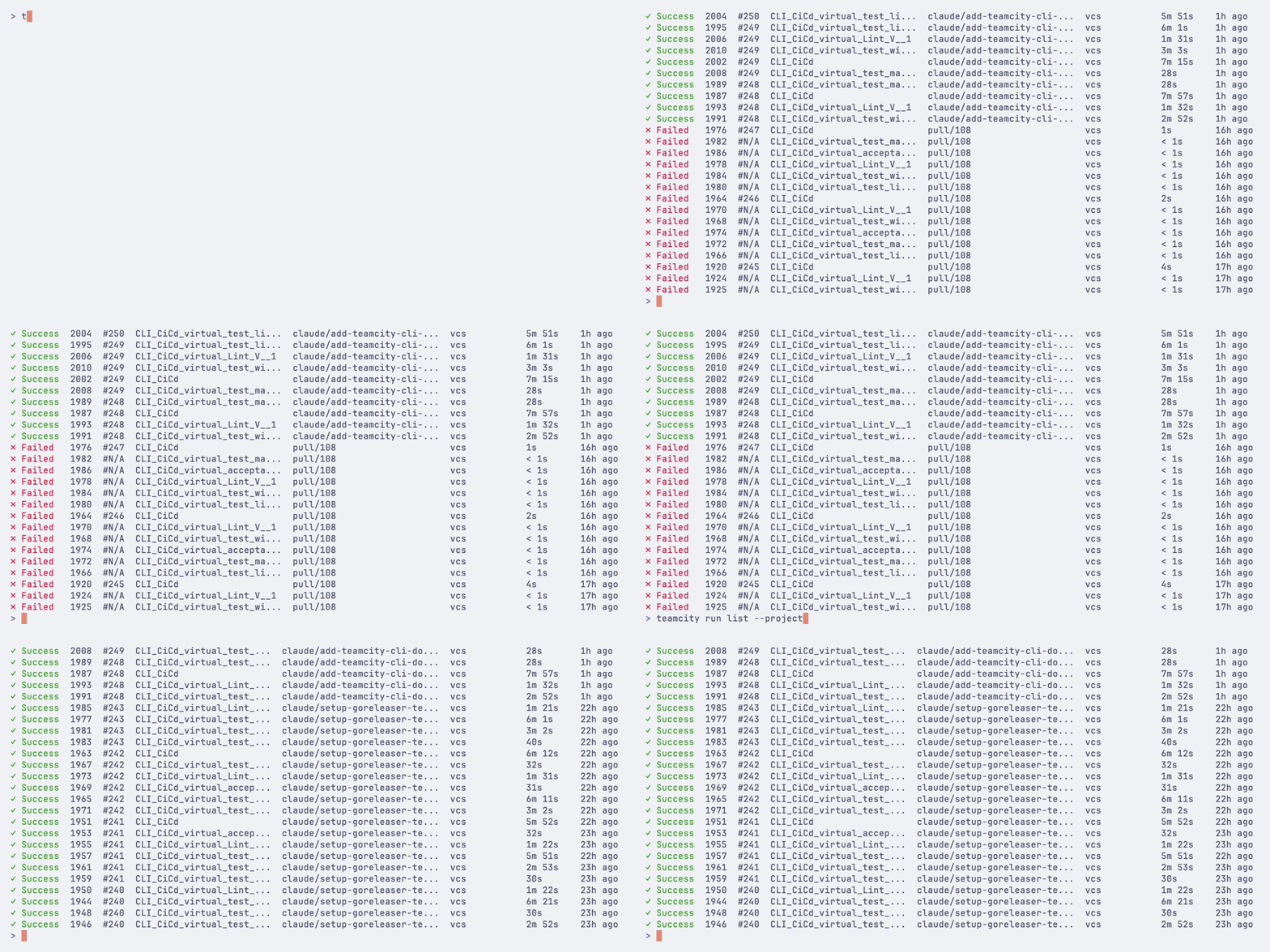
List recent builds
Add filters to narrow results:
Find job IDs
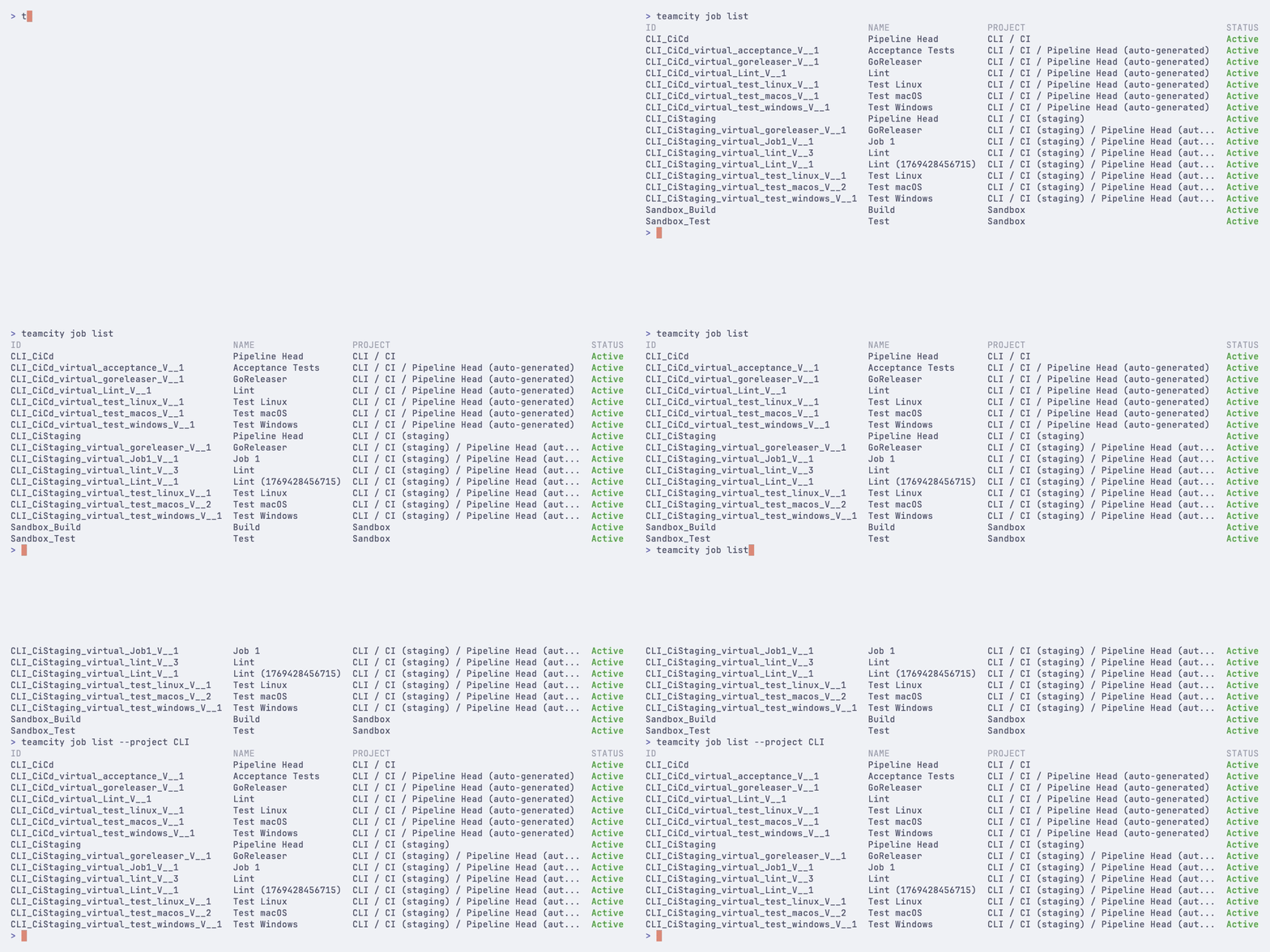
Many commands require a job ID. Use teamcity job list to browse available jobs:
Start a build
Trigger a new build by specifying a job ID:
Add --watch to follow the build in real time:
The --watch flag displays a live progress view that updates until the build completes.

View build logs
View the log output from a specific build:
Or get the latest log for a job:

Investigate a failure
When a build fails, use this workflow to quickly find the root cause:
Find the failed build:
teamcity run list --status failureView failure diagnostics (problems, failed tests with full stack traces):
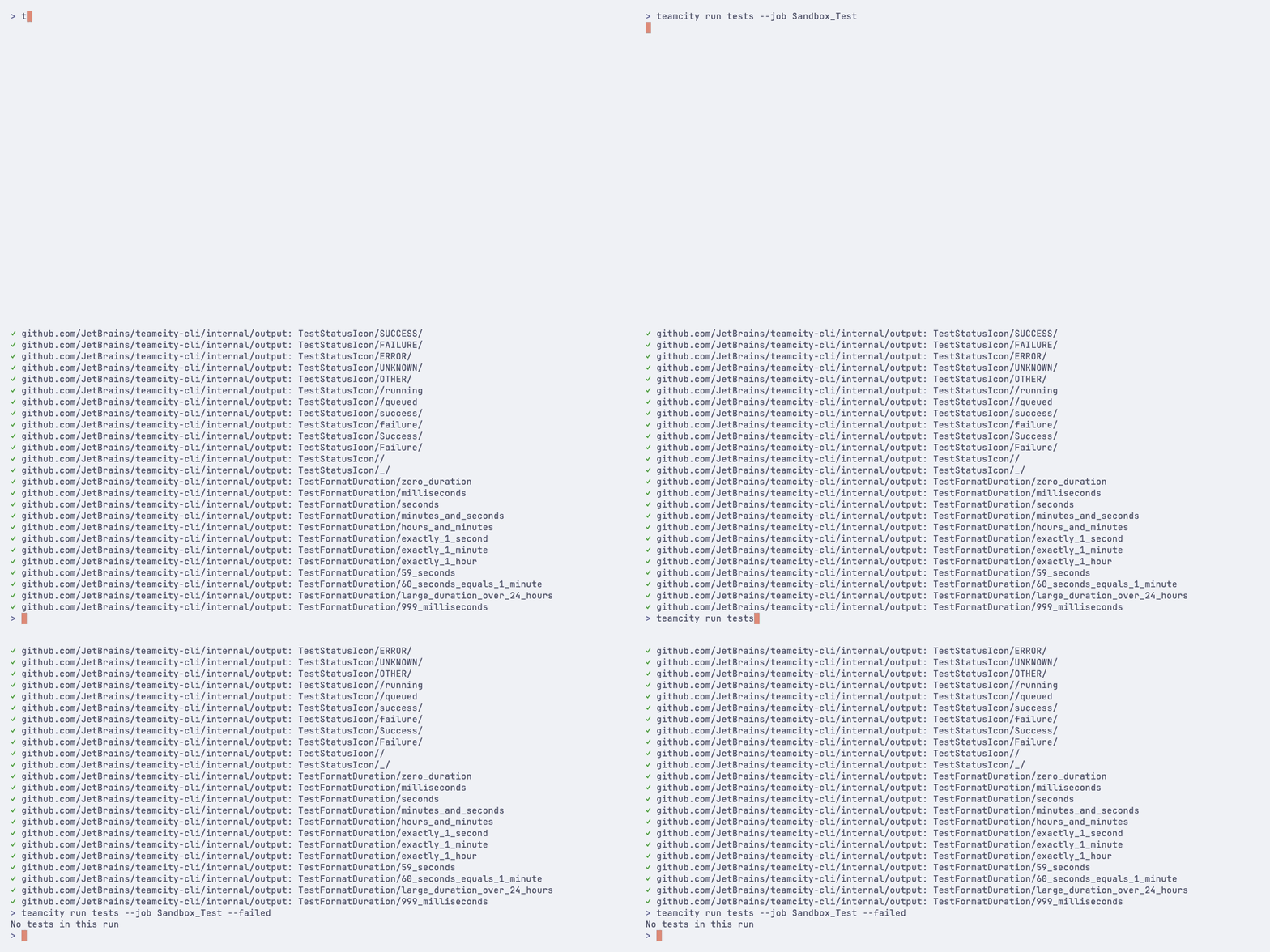
teamcity run log 12345 --failedInspect individual test failures:
teamcity run tests 12345 --failed
Check the build queue
See what builds are waiting to run:
View build agents
List all registered build agents and their status:
Filter to show only connected agents:

Open in the browser
Most view commands support a --web flag that opens the corresponding page in your browser:
Next steps
- Shell completion
Set up tab completion for Bash, Zsh, Fish, or PowerShell — see Configuration.
- Authentication
Learn about authentication methods including multi-server setup and CI/CD usage.
- Managing runs
Go deeper with build management — artifacts, personal builds, pinning, tagging, and more.
- Aliases
Set up custom shortcuts for frequently used commands.
- Scripting
Configure JSON output for scripting and automation.
- Command reference
Browse the full command reference for all available commands and flags.