TeamCity CLI Help

Scripting and Automation

TeamCity CLI provides several output formats and features designed for scripting, automation, and CI/CD integration.

JSON output

Many commands support a --json flag for machine-readable output. List commands also accept optional field selection.

Basic usage

teamcity run list --json teamcity job list --json teamcity project list --json

Discovering available fields

Pass --json= (with an empty value) to see all available fields for a command:
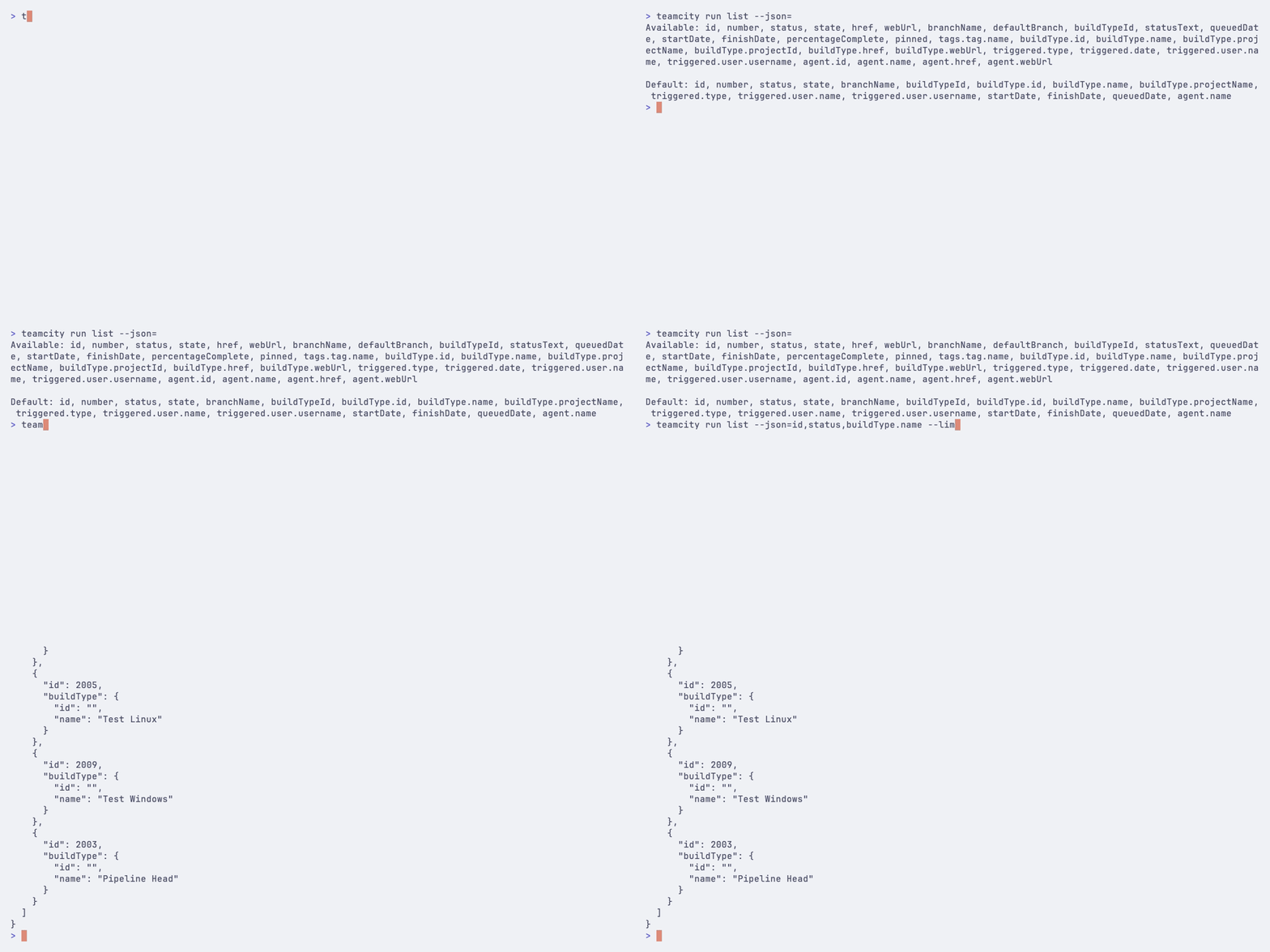
teamcity run list --json=
JSON output with field selection

Selecting specific fields

Specify a comma-separated list of fields:

teamcity run list --json=id,status,webUrl

Field selection (--json=...) is available on list commands only. View and inspection commands accept --json without field selection.

Nested fields

Use dot notation to access nested fields:

teamcity run list --json=id,status,buildType.name,triggered.user.username

JSON for view and inspection commands

teamcity run view 12345 --json teamcity run changes 12345 --json teamcity run tests 12345 --json teamcity run artifacts 12345 --json teamcity agent view Agent-Linux-01 --json teamcity project settings status MyProject --json

Available fields by command

Command

Example fields

teamcity run list

id, number, status, state, branchName, buildTypeId, buildType.name, buildType.projectName, triggered.type, triggered.user.name, agent.name, startDate, finishDate, webUrl

teamcity job list

id, name, projectName, projectId, paused, href, webUrl

teamcity project list

id, name, description, parentProjectId, href, webUrl

teamcity queue list

id, buildTypeId, state, branchName, queuedDate, buildType.name, triggered.user.name, webUrl

teamcity agent list

id, name, connected, enabled, authorized, pool.name, webUrl

teamcity pool list

id, name, maxAgents

Plain text output

Use --plain for tab-separated output that is easy to parse with standard Unix tools:

teamcity run list --plain

Omit the header row for cleaner piping:

teamcity run list --plain --no-header

Scripting examples

Get IDs of failed builds

teamcity run list --status failure --json=id | jq -r '.[].id'

Export build data to CSV

teamcity run list --json=id,status,branchName | jq -r '.[] | [.id,.status,.branchName] | @csv'

Get web URLs for queued builds

teamcity queue list --json=webUrl | jq -r '.[].webUrl'

Count builds by status

teamcity run list --since 24h --json=status | jq 'group_by(.status) | map({status: .[0].status, count: length})'

Wait for a build to finish

teamcity run start MyProject_Build --json | jq -r '.id' | xargs teamcity run watch --quiet

Cancel all queued builds for a job

teamcity queue list --job MyProject_Build --json=id | jq -r '.[].id' | xargs -I {} teamcity run cancel {} --force

CI/CD integration

Environment variable authentication

In CI/CD pipelines, use environment variables for authentication:

export TEAMCITY_URL="https://teamcity.example.com" export TEAMCITY_TOKEN="your-access-token"

PowerShell:

$env:TEAMCITY_URL = "https://teamcity.example.com" $env:TEAMCITY_TOKEN = "your-access-token"

CMD:

set TEAMCITY_URL=https://teamcity.example.com set TEAMCITY_TOKEN=your-access-token

See Authentication for details.

Non-interactive mode

Use --no-input to disable interactive prompts in automated environments. The CLI uses sensible defaults when prompts are suppressed:

teamcity run cancel 12345 --no-input

Alternatively, use --force on commands that support it:

teamcity queue remove 12345 --force

Read-only mode

Set TEAMCITY_RO=1 to prevent any write operations. In this mode, commands that would modify data (triggering builds, canceling, pinning, changing parameters, and so on) are rejected before a request is sent:

export TEAMCITY_RO=1 teamcity run list # works — read-only teamcity run start MyBuild # blocked — would trigger a build

This is useful for monitoring dashboards, reporting scripts, and shared environments where accidental modifications must be prevented. The flag also blocks write operations through teamcity api with non-GET methods.

See Configuration for accepted values.

Quiet mode

Use --quiet to suppress non-essential output:

teamcity run start MyProject_Build --quiet

Exit codes

Most commands return exit code 0 on success and 1 on failure. The teamcity run watch flow (including teamcity run start --watch) returns:

  • 2 when a run is canceled

  • 124 on timeout

teamcity run start MyProject_Build --watch --quiet case $? in 0) echo "Build succeeded" ;; 1) echo "Build failed" ;; 2) echo "Build cancelled" ;; 124) echo "Timed out" ;; *) echo "Unknown error" ;; esac

Raw API access

For operations not covered by dedicated commands, use teamcity api to make direct REST API requests:

teamcity api /app/rest/server teamcity api /app/rest/builds --paginate --slurp

See REST API access for details.

24 February 2026